The Weird World of Veo V3: A Roommate’s Perspective
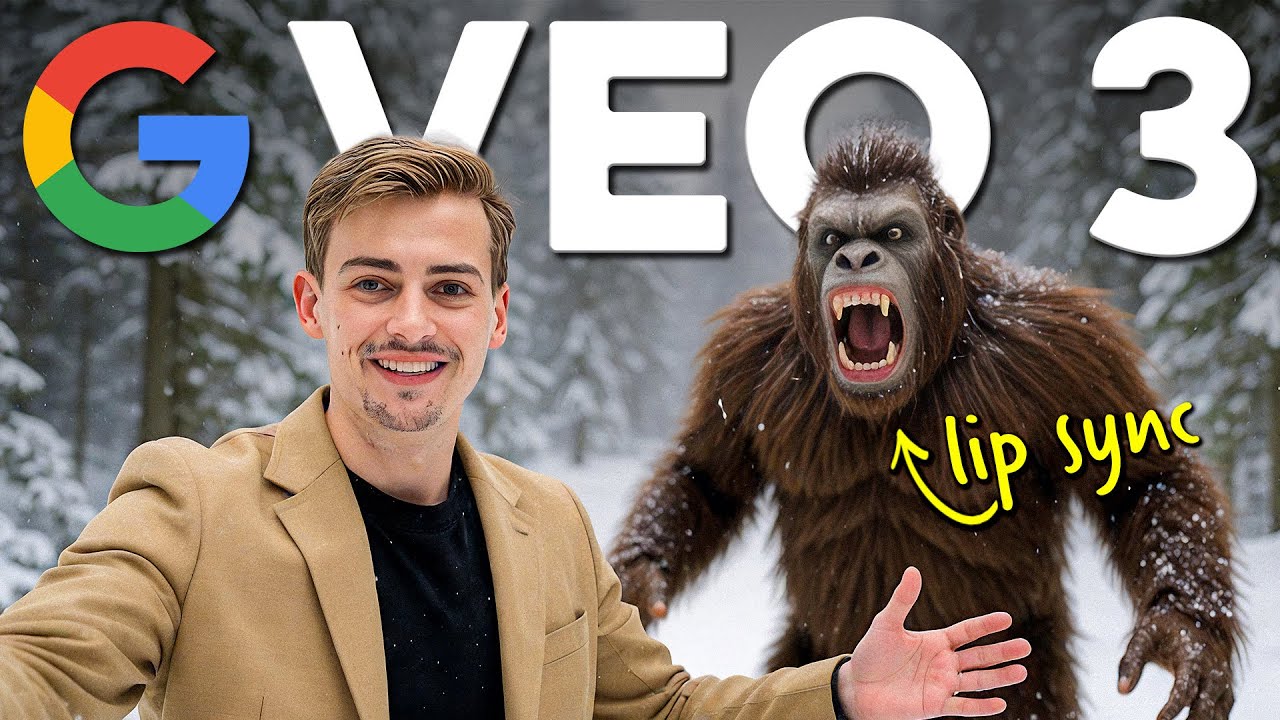
Meet Kevin, the unsuspecting roommate of Dan, who’s become totally obsessed with Google’s latest AI video generator. According to Kevin, Dan blew his rent money on a Veo V3 subscription — and generated over a thousand videos in a single day.
So what’s the hype?
With Google Veo V3, you’re not just animating still images into video — now you’re adding voices, creating narratives, and building AI-powered skits that feel eerily human. You can make your character:
- Go shopping
- Hunt for the Loch Ness monster
- Encounter Bigfoot
- Jump out of airplanes
- Compete in boxing matches
Basically, Veo V3 enables near-endless possibilities.
👉 Learn more about Google Veo here.
But There’s a Catch — The Audio Isn’t You
Despite the fun, there’s still a big limitation: you have no real control over how your character sounds. Even though Google Veo V3 now supports audio, the voices are AI-generated placeholders, and often sound… off.
“According to Veo, this is how my voice sounds. But this is how my actual voice sounds.”
This mismatch ruins immersion — especially if you’re using the tool for content creation, branding, or storytelling.
But don’t worry — there’s a powerful solution: 11 Labs voice cloning.
Step-by-Step: How to Make AI Videos with Your Own Voice
🔧 Step 1: Create a Project in Google Flow
Go to Google Flow and:
- Click “Create a New Project”
- Switch the model from Text-to-Video to Frame-to-Video
🖼️ Step 2: Generate a Base Image
You can use tools like:
- MidJourney
- PixArt-α on Hugging Face
- OpenArt – Dan’s personal favorite
Once your image is ready:
- Upload it to Google Flow
- Crop it as needed
- Enter a detailed prompt (e.g., “handheld vlog-style shot with movement”)
- End your prompt with
no subtitlesto avoid glitchy captions
🎬 Step 3: Generate the Video
After submitting the prompt, Google Flow will render your animated video with basic audio. But remember, the voice won’t sound like you — yet.
🎙️ How to Add Your Own Voice Using 11 Labs
🛠 Step 4: Export the Video’s Audio
Use any video editing software (like Adobe Premiere Pro, CapCut, or DaVinci Resolve):
- Import your generated video
- Export the audio as MP3
🔁 Step 5: Clone Your Voice with 11 Labs
Go to 11 Labs and:
- Head to the Voice Changer section
- Upload your MP3 file
- Select your own Voice Clone
You have two options:
- Instant Voice Cloning – record just a few minutes of audio
- Professional Voice Cloning – requires 30+ minutes for best quality
Once your voice model is ready, hit Generate.
🧠 Fun Fact: 11 Labs is trusted by creators and developers for high-quality audio generation. Learn more about top tools in this AI voice generator guide.
📦 Final Assembly: Syncing Everything Together
Back in your editing software:
- Replace the default AI voice track with your new voice clone audio
- Export the final cut
Now you have a Google Veo video featuring yourself — visually and vocally.
So… Is This the Future of Content Creation?
Absolutely. With Veo V3’s image-to-video with audio, combined with tools like OpenArt and 11 Labs, anyone can:
- Create cinematic-style vlogs
- Build fictional characters or universes
- Tell stories with complete voice control
It’s now easier than ever to create engaging, monetizable AI content without a camera or mic.
🚀 Explore this AI video generator comparison to choose the best tool for your workflow.
Final Thoughts: Dan Might Be Crazy… But He’s Onto Something
Kevin may be worried about his roommate Dan, but the truth is — Dan is embracing the future of digital storytelling.
By combining:
- Google Veo V3 for video generation
- OpenArt for image prompts
- 11 Labs for voice cloning
…you can make videos where you are the AI-powered star.
👉 Try it for yourself:
Don’t forget to subscribe and follow along for more AI video automation tips.